9 prompts to ask your AI assistant about your course reviews
The review is done. Now answer the real questions in plain English: what is still open, who owes what, what to fix first. Nine prompts for an AI assistant connected to your RME review data.

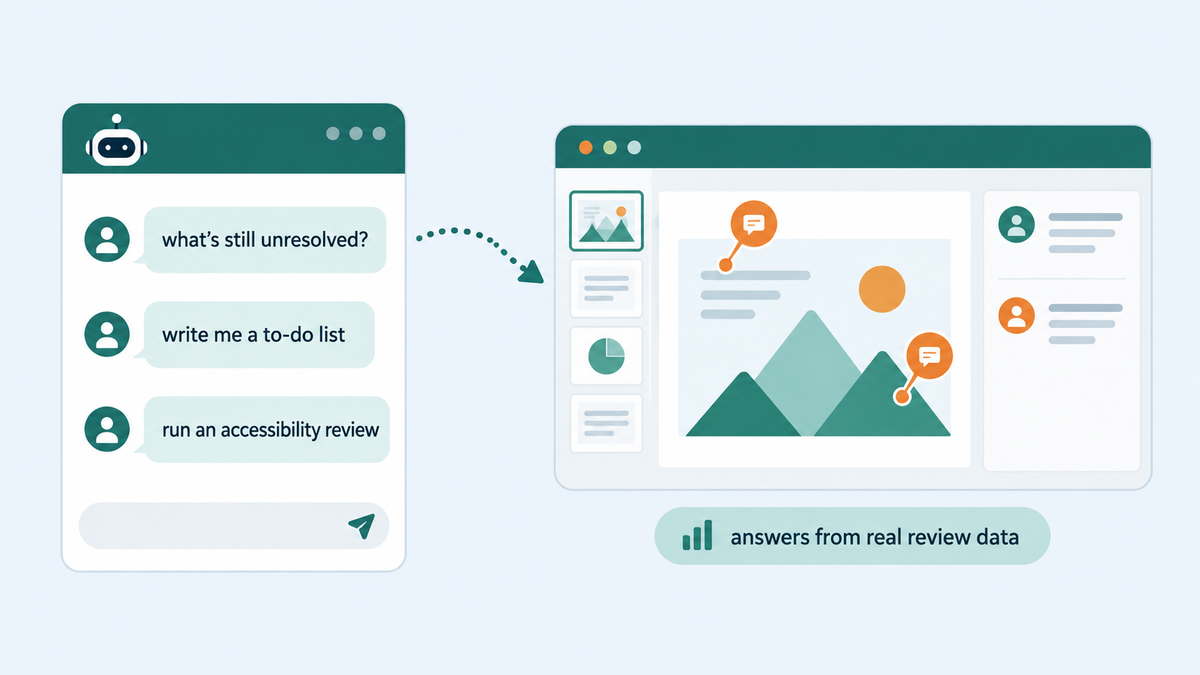
A review cycle ends and the comments sit in the tool. The questions you actually have are simple: what is still open, who owes what, what should we fix first. Answering them means clicking through courses and filters - or asking once, in plain English.
If you have connected an AI assistant to Review My eLearning through the built-in MCP server (Claude, ChatGPT, or Codex - setup takes a few minutes), the review record becomes something you can talk to. Here are the prompts worth saving.
Find what is still open
- "Show me all unresolved comments in the Sales Training course." The Monday-morning question. Swap in your course name.
- "Which comments are assigned to me?" Turns the review tool into a personal queue.
- "Look at all the comments for the Ladder Safety course and write me a to-do list." A first draft of the fix list, ready to argue with.
See the patterns
- "Give me a weekly summary of comment activity." Useful when several courses are in review at once.
- "Who creates the most comments? What are the top 5 tags?" Patterns tell you where the course - or the review process - needs attention.
Move the work forward
These need the upload permission, not just read access.
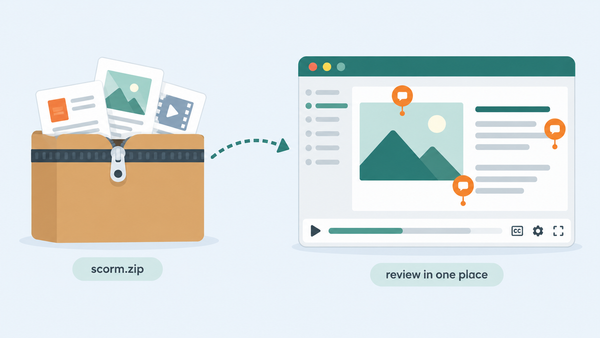
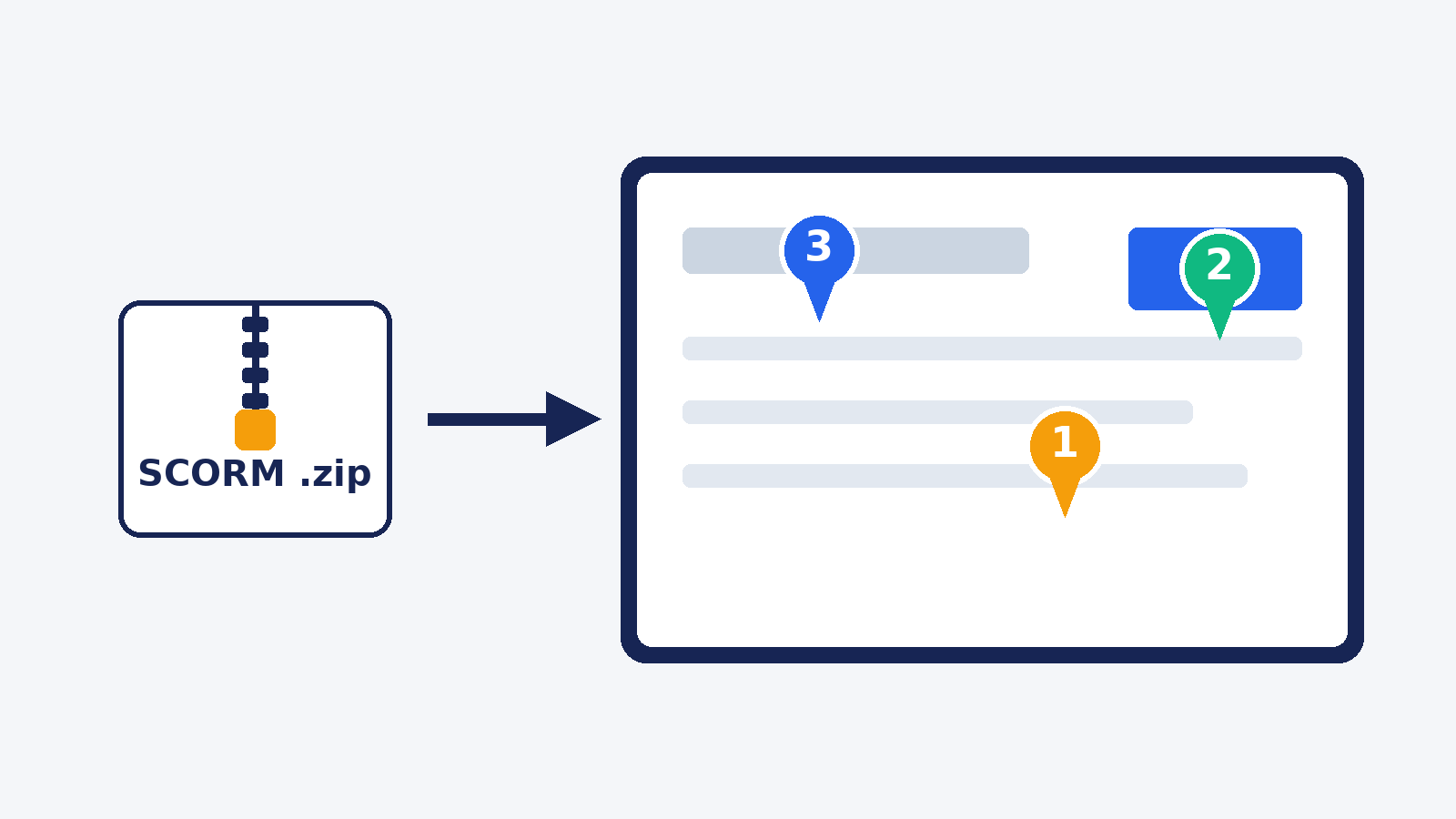
- "Upload the course at https://exports.example.com/safety-v3.zip to Review My eLearning." The assistant pushes the new version in; processing takes a few minutes.
- "Run all the AI reviewers on the Safety Training course." The AI reviewers cover accessibility, UX, and design, and their comments land on the course like any other reviewer's.
- "Have RME check that course for accessibility." A narrower pass when that is the concern.
- "Send this course to RME and get a UX review." Upload and review in one instruction - the review starts by itself once the course finishes processing.
A few honest notes
Read versus change. The approval screen shows exactly what your assistant asked for. Read access answers questions; uploading courses, inviting reviewers, or updating comments needs the separate upload permission. ChatGPT confirms before any tool that changes something runs - that is expected, not a bug.
Summaries are drafts. An assistant can group and prioritize comments, but a human decides what ships. The same rule applies to AI reviewers: a first pass, never a verdict.
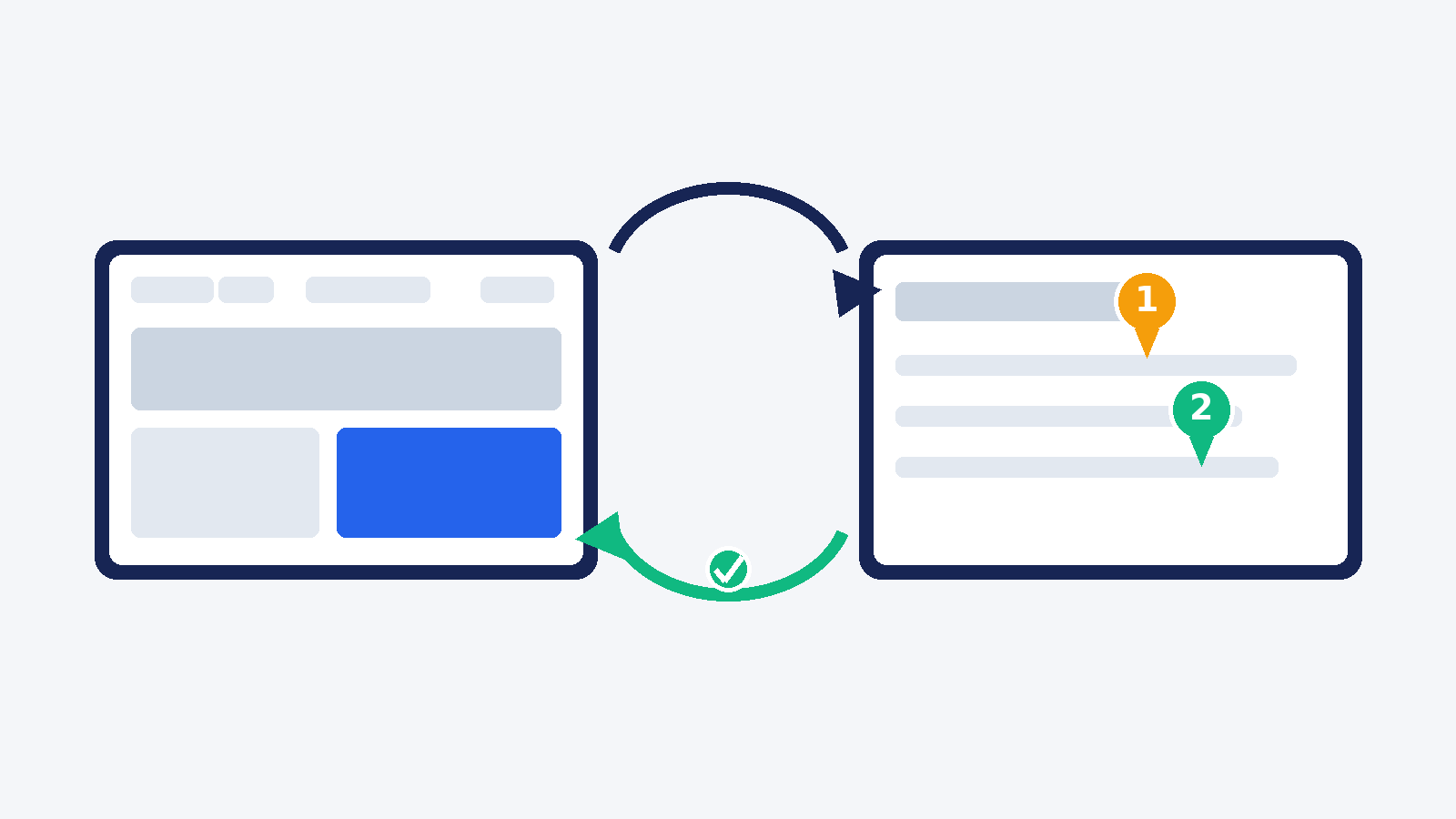
The full loop. If your assistant also builds your courses, it can read the unresolved comments and prepare the next version itself. We wrote about that handoff separately.
Try it this week. Connect your assistant - the setup guide covers Claude, ChatGPT, and Codex. No RME account yet? Start a free trial - no credit card required.