How to review an Adobe Captivate course: publish, upload, and collect feedback on the screen
Built your course in Captivate? Publish it as SCORM, upload the zip, and your reviewers can comment on the exact screen. Here is how to get the upload right the first time.


You built the course in Adobe Captivate. Now your SME, your client, and someone from compliance all need to look at it, and each of them will send notes in a different way. An email. A Word doc. A screenshot with a red circle on it.
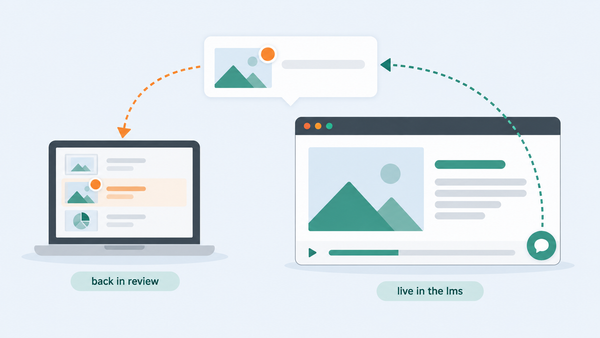
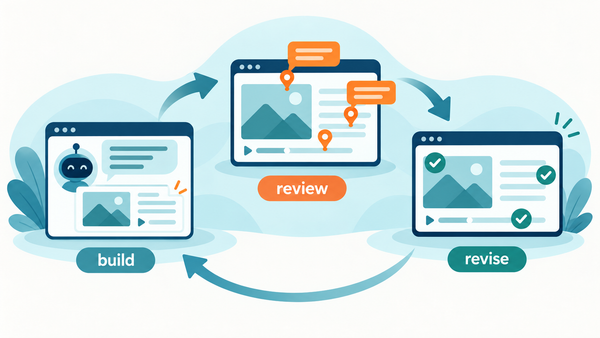
Review My eLearning supports Captivate. You publish the course as a SCORM package, upload the zip, invite your reviewers, and every comment lands on the exact screen it is about. Here is the short version of how to set that up so the upload works the first time.
Publish from Captivate
Adobe's own guide to creating a SCORM package in Captivate covers the steps. In short:
- Open Preferences, go to Quizzing, then Reporting, and turn on Enable Reporting.
- Pick the LMS standard. Captivate offers SCORM 1.2, SCORM 2004, AICC, and xAPI. Review My eLearning accepts any SCORM version Captivate publishes, so pick whichever your LMS needs.
- Publish the project and let Captivate zip the package.
Let Captivate do the zipping if you can. If you zip by hand, open the published folder, select everything inside it, and compress that selection. Do not right-click the folder itself. The file imsmanifest.xml has to sit at the root of the zip, and zipping the parent folder buries it one level down. That is the most common reason an upload is rejected as an invalid package, and our knowledge base article on invalid SCORM packages walks through it.
Upload and invite reviewers
Only an account owner or an uploader can upload a course. Upload the zip, then invite your reviewers by email, or share a public review link for someone outside your team. Reviewers do not need to pay for anything, and they do not need to know Captivate exists. They open the course, click the screen they are looking at, and type.
What changes for your review process
- Comments sit on the screen. No more "the slide with the forklift." The note is attached to the slide it is about.
- Feedback becomes work. Each comment has a status and can be assigned, so you can see what is open and who has it.
- Rounds keep their history. Re-upload a new version and start a fresh review cycle. Version one's conversation does not disappear.
- Your branding on the review. On Pro and above, reviewers see your logo and colours, not ours.
Reviewing a Captivate course with a stakeholder who has never used a review tool
Send the link and one question. "Is the content accurate?" gets a better answer than "can you take a look?" For more on getting reviewers to respond, see our post on why SMEs go quiet and what to do about it.
Captivate is one of several authoring tools Review My eLearning works with. The same upload works for Storyline, Rise, Lectora, Gomo, and iSpring courses, and for HTML5 courses built with AI tools. Start a free 14-day trial and send your first Captivate review link today. No credit card required.