How to review a Rise 360 course: export, upload, and collect feedback on the screen
Built your course in Rise 360? Export as SCORM, upload the zip, and every comment lands on the exact screen. Here is how the review round works.

You built the course in Rise 360. Now your SME, your client, and someone from compliance all need to look at it, and each of them will send notes in a different way. An email. A chat message. A screenshot with a circle on it.
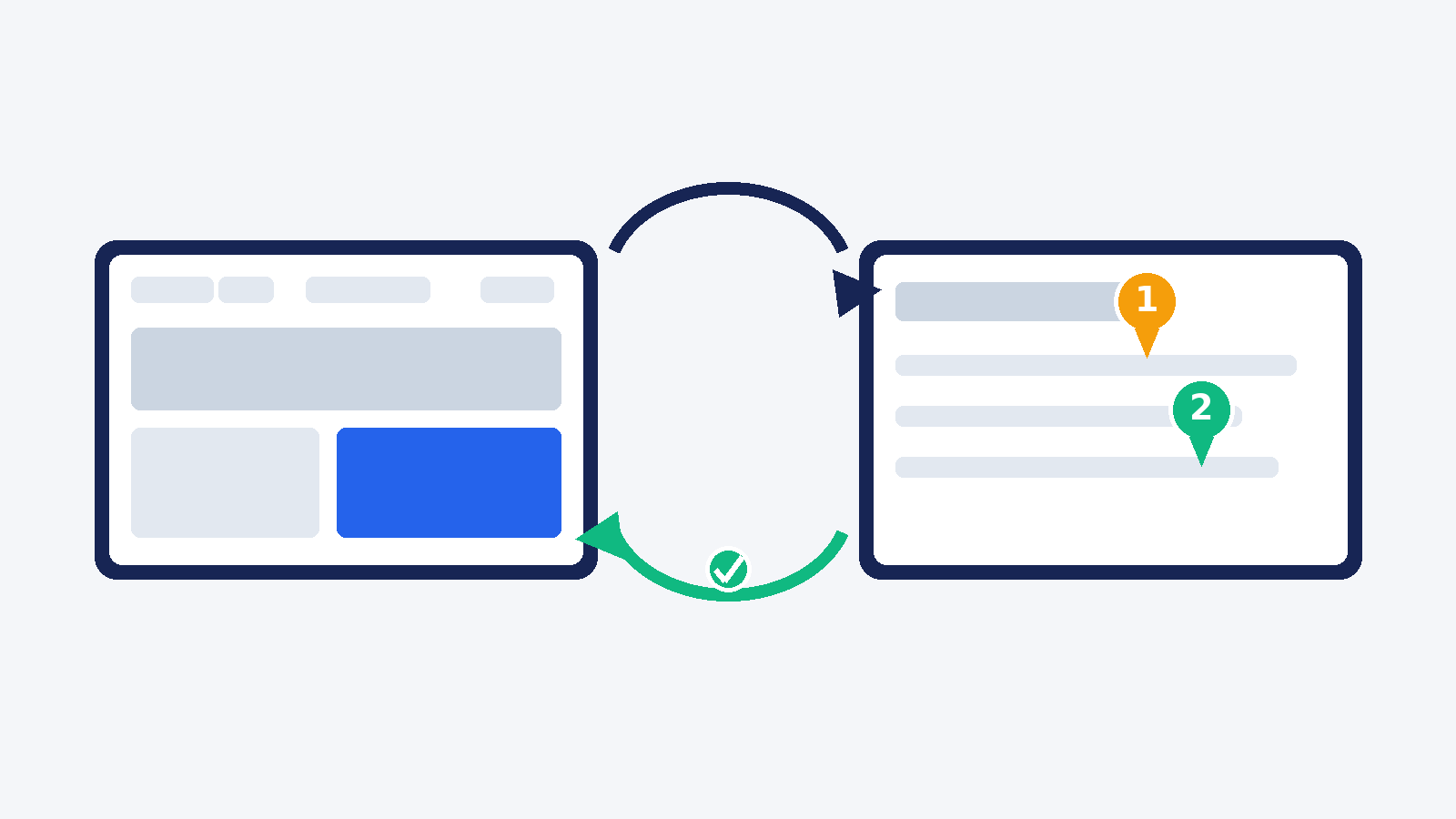
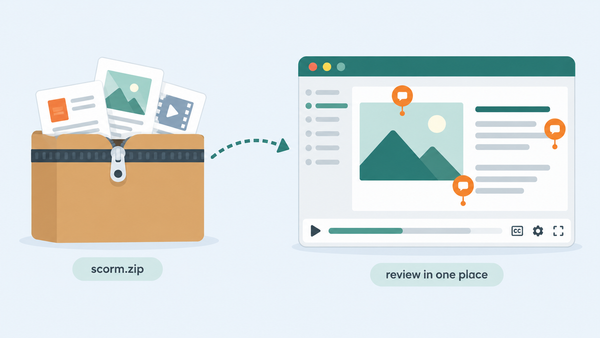
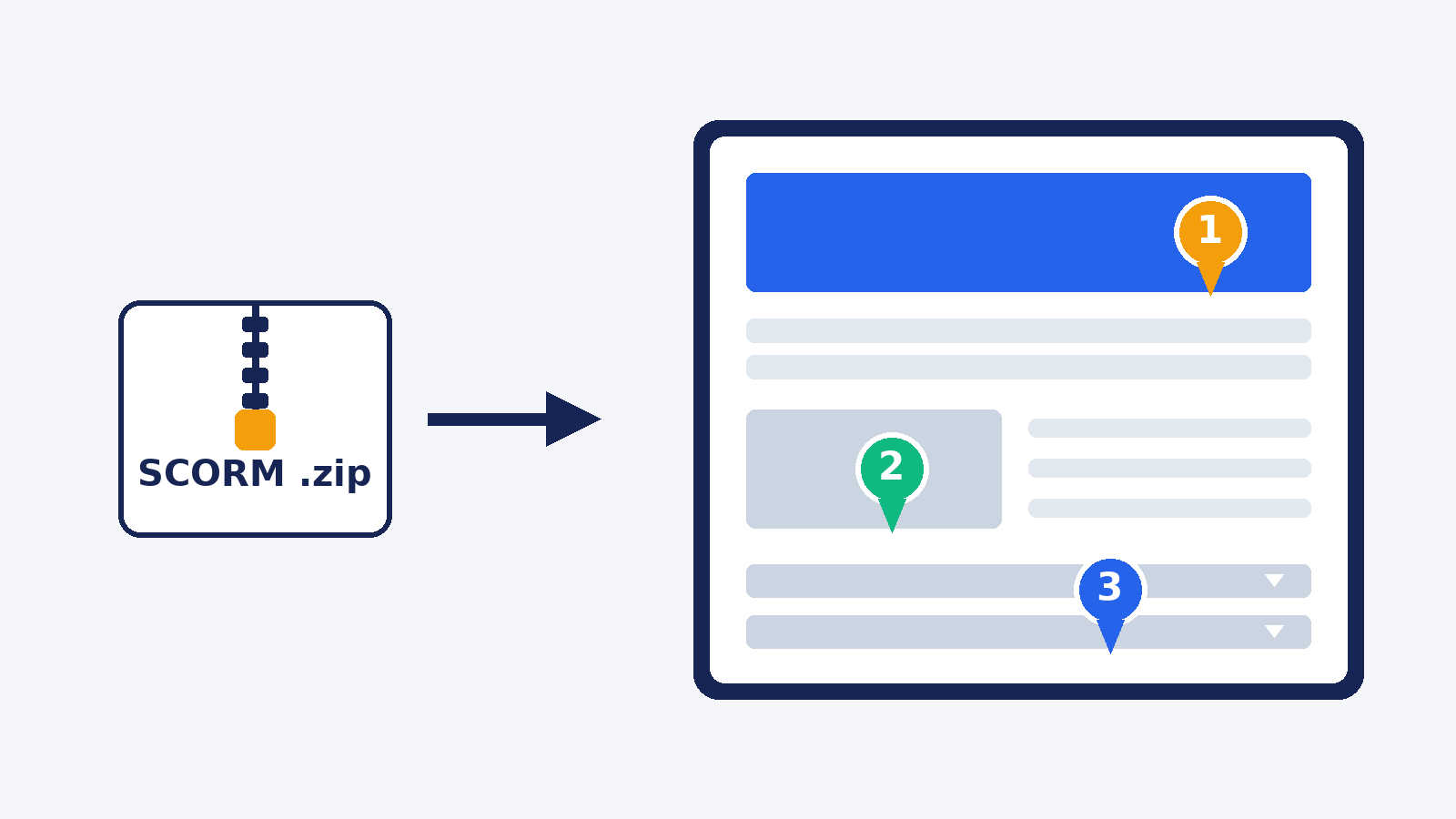
Review My eLearning works with Rise. You export the course as a SCORM package, upload the zip, invite your reviewers, and every comment lands on the exact screen it is about. Here is how to set that up so the upload works the first time.
Export from Rise
This walkthrough of the Rise export covers every setting. In short:
- Open the course, click Publish, and choose LMS.
- Pick the standard. Rise exports SCORM 1.2, SCORM 2004, xAPI, cmi5, and AICC. Review My eLearning accepts any SCORM version, so pick whichever your LMS needs. SCORM 1.2 is the safe default.
- Choose a tracking option and click Publish again. Rise builds the zip and your browser downloads it.
There is no zip step to miss - Rise zips the package for you. Upload that zip exactly as it downloaded. Do not unzip it and zip it again by hand: that buries imsmanifest.xml one folder deep, and the upload is rejected as an invalid package. Our knowledge base article on invalid SCORM packages walks through that fix.
Upload and invite reviewers
Only an account owner or a user with uploader privileges can upload a course. Drag the zip in or browse to it, and give it a few minutes to process. Then invite your reviewers by email, or share a public review link with someone outside your team. Reviewers do not need to pay for anything, and they do not need an Articulate account. They open the course, click the screen they are looking at, and type.
What changes for your review process
- Comments sit on the screen. No more "the accordion block in lesson three." The note is attached to the block it is about.
- Feedback becomes work. Each comment has a status and can be assigned, so you can see what is open and who has it.
- Rounds keep their history. Export a new version, upload it, and start a fresh review cycle. Version one's conversation does not disappear.
- Your branding on the review. Every plan can show your logo and colours, not ours.
What about Review 360?
Articulate's built-in route is Review 360, which comes with an Articulate 360 subscription and works for courses that stay inside that world. If your reviewers are outside it, or you want tracked, assignable comments instead of a comment stream, we compared the options. The export above takes about a minute either way, so you can try both.
Reviewing with a stakeholder who has never used a review tool
Send the link and one question. "Is the content accurate?" gets a better answer than "can you take a look?" For more on getting reviewers to respond, see our post on why SMEs go quiet and what to do about it.
The same upload works for Storyline, Captivate, Lectora, Gomo, and iSpring courses, and for HTML5 courses built with AI tools like Lovable, Bolt, and Claude. Start a free 14-day trial and send your first Rise review link today. No credit card required.